Admin & Settings: Settings & Access Overview
Written By Amalia Busch
Last updated 3 months ago
Admin & Settings: Settings & Access Overview
What It's For
The Settings page holds your personal preferences, account-wide configuration, and team access controls. What you can see here depends on your role:
Admins can access every section of Settings.
IP Managers (non-admin users) can access everything except the Account section, which is Admin-only.
User (Admin and IP Managers)
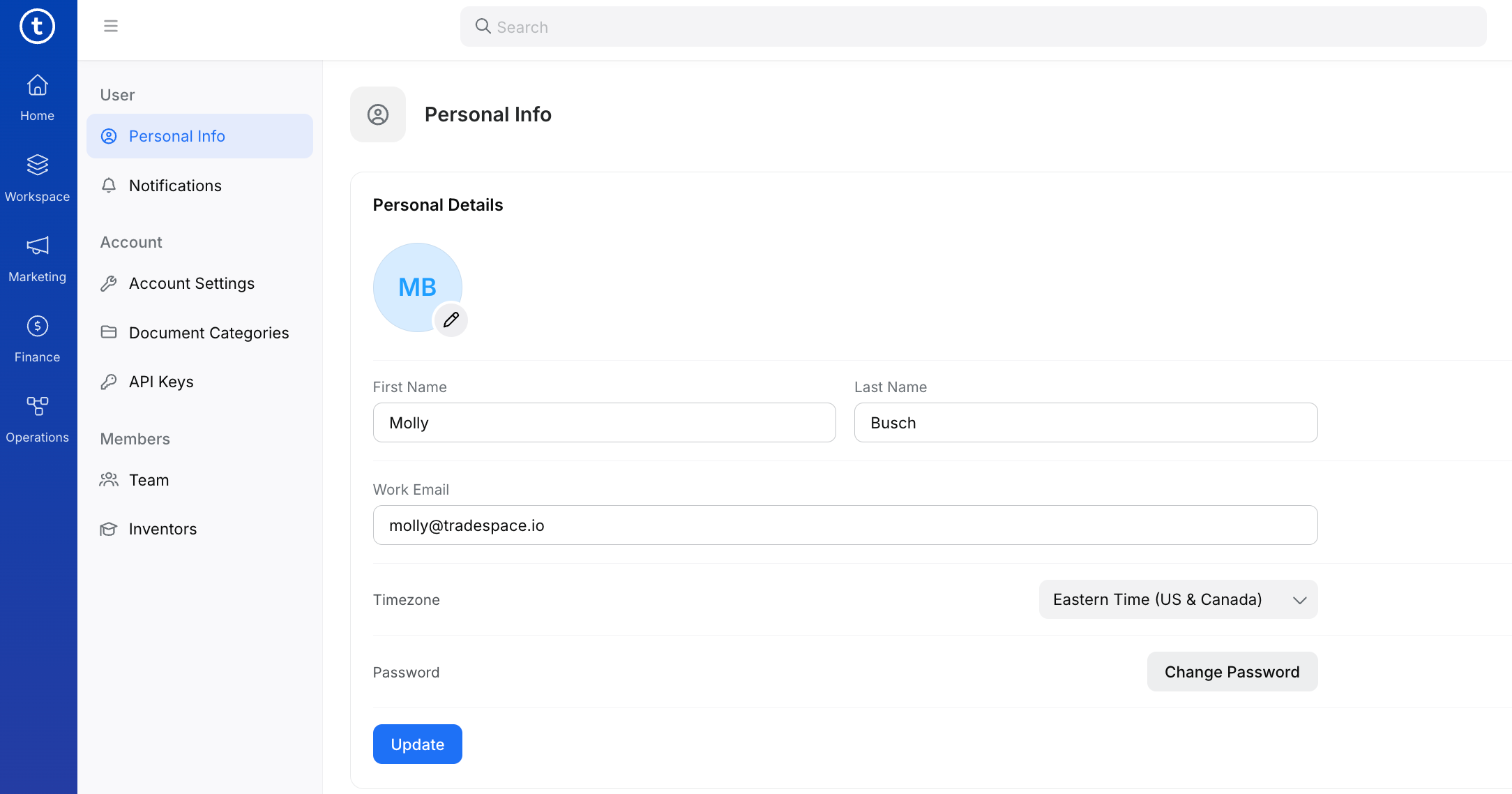
Personal settings available to Admin and IP Managers.
Personal Info — update your name, work email, timezone, and password.
Notifications — choose which email notifications you receive: task summaries, individual task notifications, and IP assessment report alerts.
Account (Admin only)
Account-wide configuration. Only Admins can see or use this section — it doesn't appear in the sidebar for other users.
Account Settings — update the organization's account name, contact email, and billing email.
Document Categories — create and manage the categories (e.g., Agreements, Bills, Contacts) used to organize documents across the account.
API Keys — generate and manage API keys for the account.
Members (all roles)
Available to Admin and IP Managers.
Team — view and manage who has access to your Tradespace account (see Team Management below).
Inventors — manage the list of inventors associated with your account.
Team Management
Any user — Admin or IP Manager — can invite, edit, or disable other users from the Team page. The Account section is the only part of Settings restricted to Admins.
Add a User
Click the Settings icon in the left sidebar.
Click Team.
Click + Invite User and enter their email address.
Select their role (standard user or admin).
Click Send Invite. They'll receive an email to set up their account.
Disable a User
When someone leaves your office:
Click Settings → Team.
Find the user and click Edit.
Click Disable.
Disabling a user removes their login access but preserves their record and all activity history in the system. You can still see what they created, approved, or modified.
Tips
Disable users promptly when they leave.
Grant Admin rights sparingly — most day-to-day users don't need it. Admin only unlocks the Account section (account details, document categories, API keys); it isn't required to manage the team. A good rule of thumb is to limit Admin access to IP office leadership and whoever is responsible for system configuration.
If a user needs access to only certain parts of the platform (e.g., the Grants Office auditing inventions), work with your Tradespace point of contact on how to configure their access appropriately.
Was this helpful?