Operations
How to manage agreements, email auto-routing, grants, iEdison reporting, contacts, organizations, groups, and exports.
Written By Amalia Busch
Last updated 4 months ago
Operations houses the supporting records and compliance workflows that connect your IP activity to the outside world — contracts, federal reporting, correspondence, people, and data exports.
Agreements
Agreements manages every contract that touches your IP — NDAs, options, license agreements, MTAs, and more.
Create an agreement:
Go to Operations → Agreements → + New Agreement.
Select the agreement type and link the related inventions and specific filings in scope.
Add the agreement identifier, counterparty organization, governing law, and effective dates.
Click Save — you can save before adding financial terms while negotiations are ongoing.
Add license terms: Open the agreement and click + Add Term. Supported financial terms include upfront fees, royalties, milestones, minimum annual royalties (MARs), assignment fees, and equity. Saving a financial term automatically creates a receivable on the term's due date (see Finance).
For multi-tier royalties, end-date one rate and start a new one — the system honors both windows. Each agreement has a Notes panel for negotiation history and deal context.
Email Auto-Routing
Email Auto-Routing automatically attaches emails and attachments to the right invention, patent, or agreement based on a tag in the subject line.
Setup: Your office is provisioned a dedicated routing email address during onboarding. Share it with outside counsel. When sending or replying, include the object number (invention or docket number) in the subject line.
Where emails land:
Inbox — unassigned emails (no tag detected)
Archived — emails assigned to an object
Related Items → Emails on the linked invention, patent, or agreement
Manual assignment: Open an email in Inbox, click Edit Assignment, add the relevant records, and click Save.
Email summaries collapse long threads. Attachments are de-duplicated — junk footer images aren't pulled in as files.
Grants
Grants stores federal and sponsored grant records that link to inventions and feed iEdison reporting.
Recommended setup: Get a CSV export from your Grants Office of all grants active in the last five years and bulk upload to Operations → Grants. Pre-loading grants means inventors can autocomplete the grant field on their disclosure form — keeping federal reporting clean without back-and-forth.
Consider giving your Grants Office read-only access so caseworkers can audit inventions tied to a PI at award close-out without requesting reports from your office.
iEdison
iEdison handles Bayh-Dole federal compliance reporting via direct API — no re-keying into the iEdison portal.
First-time setup: Connect your iEdison credentials once during onboarding.
Submit an initial report:
Open Operations → iEdison. Federally funded, unreported inventions appear under Outstanding.
Click into an item and fill in Bayh-Dole version, DOE number, IP managers, lead inventors, and funding sources.
Mark Under Evaluation to defer the election decision, or proceed to elect.
Click Continue, attach the disclosure file, and click Submit Report. The returned iEdison number is saved against the invention automatically.
If an invention doesn't appear in Outstanding, the most likely cause is a missing grant number on the disclosure form.
Contacts & Organizations
Contacts are people — inventors, attorneys, licensees, grants officers. Organizations are companies, universities, or agencies. Both are linked throughout the platform.
Inventor records are created automatically when a disclosure is submitted.
Contacts added to an opportunity or agreement appear on both records (bidirectional linking).
Create organization records before contacts to associate contacts with their institution from the start.
Groups
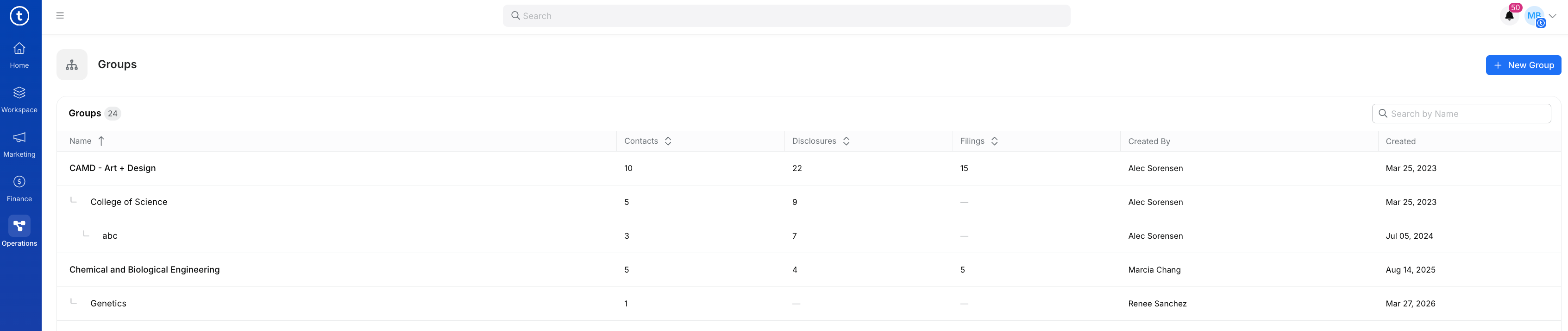
Groups models your institution's internal hierarchy — schools, colleges, divisions, departments. Configured during onboarding to match your reporting structure.
Groups surface in distribution rules, reporting filters, and contact records. You can model multiple tiers with configurable naming. To add or update after onboarding: Operations → Groups → + New Group.
Exports
Every list view in Tradespace has a built-in Export button. To export:
Open any list view (Disclosures, Docket, Agreements, Finance views, etc.).
Apply filters to narrow the dataset.
Click Export in the top-right.
All exported files are saved to Operations → Exports for re-download later. Large exports may take a moment to process — you'll see a notification when the file is ready.
Was this helpful?